Git 的作用
用资源库管理项目
克隆一个项目,在一个本地副本上工作
通过暂存和提交来控制和跟踪变化
分支和合并,允许在项目的不同部分和版本上工作
将项目的最新版本拉到本地拷贝上
推送本地更新到主项目
Git 的工作流程
在一个文件夹上初始化Git,使其成为一个存储库。现在,Git 创建了一个隐藏的文件夹,以跟踪该文件夹中的变化
当一个文件被修改、添加或删除时,它就被认为是被修改过的。
你可以选择你想要暂存的修改文件
缓存的文件被提交,这就提示Git存储了这些文件的永久快照
Git 允许你看到每次提交的完整历史。
你可以回溯到之前的任何一个提交。
Git并不是在每次提交中都为每个文件存储一个单独的副本,而是跟踪每次提交中的修改情况
GitHub
Git与GitHub不一样。
GitHub使用的是Git工具。
GitHub是世界上最大的源代码仓库,自2018年以来一直由微软拥有。
在本教程中,我们将重点讨论使用Git与GitHub。
Git 安装
本地 Git 配置
现在让 Git 知道你是谁。这对于版本控制系统很重要,因为每个 Git 提交都使用这些信息。将用户名和电子邮件地址更改为您自己的。稍后注册到 GitHub 时,您可能也想使用它。
git config --global user.name "limengdu"
git config --global user.email "[email protected]"使用 --global 参数的作用是为计算机上的每个存储库设置用户名和电子邮件。(以后就不用再次设置)
git ignore & .gitignore
你可以创建一个.gitignore文件去避免push某些你不想分享的文件内容:
创建:
touch .gitignore现在我们建立两条规则:第一,忽略掉.log结尾的文件;第二,忽略掉temp/路径下的所有文件。
# ignore ALL .log files
*.log
# ignore ALL files in ANY directory named temp
temp/在这种情况下,我们使用一个适用于整个版本库的.gitignore。
在子目录中也可以有额外的.gitignore文件。这些文件只适用于该目录下的文件或文件夹。
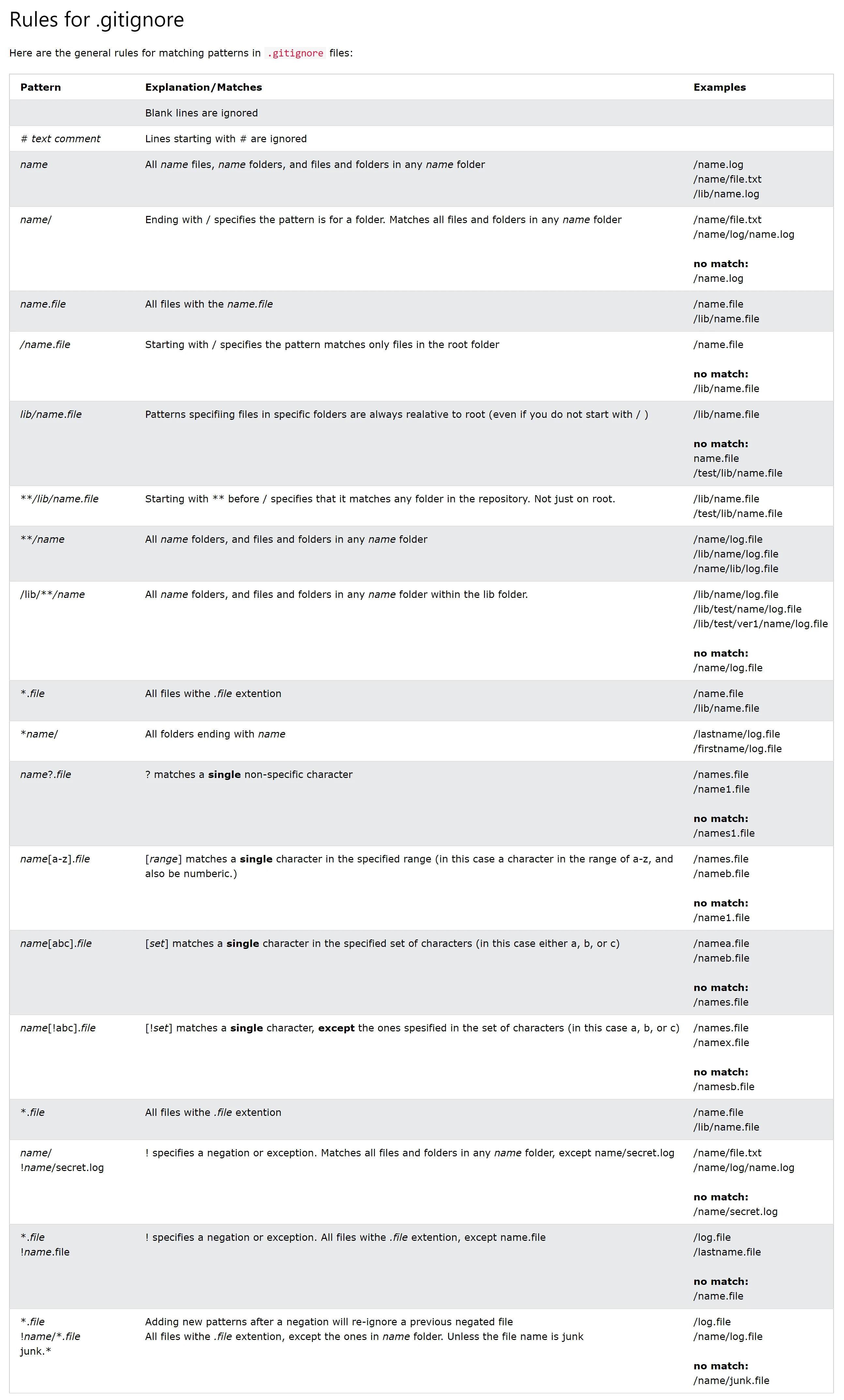
本地初始化 Git 仓库
git initGit 现在知道它应该监视您启动它的文件夹。
本地 Git 添加新文件
检查 Git 状态,看看它是否是我们仓库的一部分:
git statusGit 存储库文件夹中的文件可以处于以下两种状态之一:
Tracked——Git 知道并添加到存储库中的跟踪文件
Untracked——文件在你的工作目录中,但是没有添加到存储库中
当你完成了文件的编写工作,那么我们可以将其添加到阶段环境中:
git add filename添加多个文件:
git add .添加提交可以在我们工作时跟踪我们的进度和变化。Git 考虑每个提交更改点或“保存点”。这是项目中的一个点,如果您发现错误,或者希望进行更改,可以返回该点。当我们提交时,应该始终包含一条消息。通过向每个提交添加明确的消息,您(和其他人)很容易看到什么发生了变化,以及何时发生了变化。
git commit -m "Add/Fix/Update/Delete: product name + content."可以通过日志查看提交历史:
git log本地新分支
我们在本地存储库中工作,我们不想干扰或可能破坏主要项目。因此,我们创建了一个新的分支:
git branch add-something查看分支:
git branch列出的分支中,带*号的表示当前所在的分支。
Checkout 是用于切换分支的命令。将我们从当前分支移动到命令末尾指定的分支:
git checkout add-something现在,我们已经将当前的工作区从主分支移动到了新的分支。
一个命令实现创建新分支并切换的过程:
git checkout -b add-something本地合并分支
我们已经准备好了紧急修复,因此让我们合并主分支和emergency-fix分支。首先,我们需要换到主分支:
git checkout main现在我们将当前分支(main)与emergency-fix合并:
git merge emergency-fix由于main和emergency-fix现在基本上是一样的,我们可以删除紧急修理,因为它不再需要:
git branch -d emergency-fix本地合并冲突
git checkout main
git merge add-something
Auto-merging index.html
CONFLICT (content): Merge conflict in index.html
Automatic merge failed; fix conflicts and then commit the result.合并失败,因为 index.html 的版本之间存在冲突,所以我们需要解决这个冲突。
主分支的内容:
<!DOCTYPE html>
<html>
<head>
<title>Hello World!</title>
<link rel="stylesheet" href="bluestyle.css">
</head>
<body>
<h1>Hello world!</h1>
<p>This is the first file in my new Git Repo.</p>
<p>This line is here to show how merging works.</p>
</body>
</html>add-something分支的内容:
<!DOCTYPE html>
<html>
<head>
<title>Hello World!</title>
<link rel="stylesheet" href="bluestyle.css">
</head>
<body>
<h1>Hello world!</h1>
<div><img src="img_hello_world.jpg" alt="Hello World from Space" style="width:100%;max-width:960px"></div>
<p>This is the first file in my new Git Repo.</p>
<p>A new line in our file!</p>
<div><img src="img_hello_git.jpg" alt="Hello Git" style="width:100%;max-width:640px"></div>
</body>
</html>显然,两个分支的同一个文件内容是不同的。
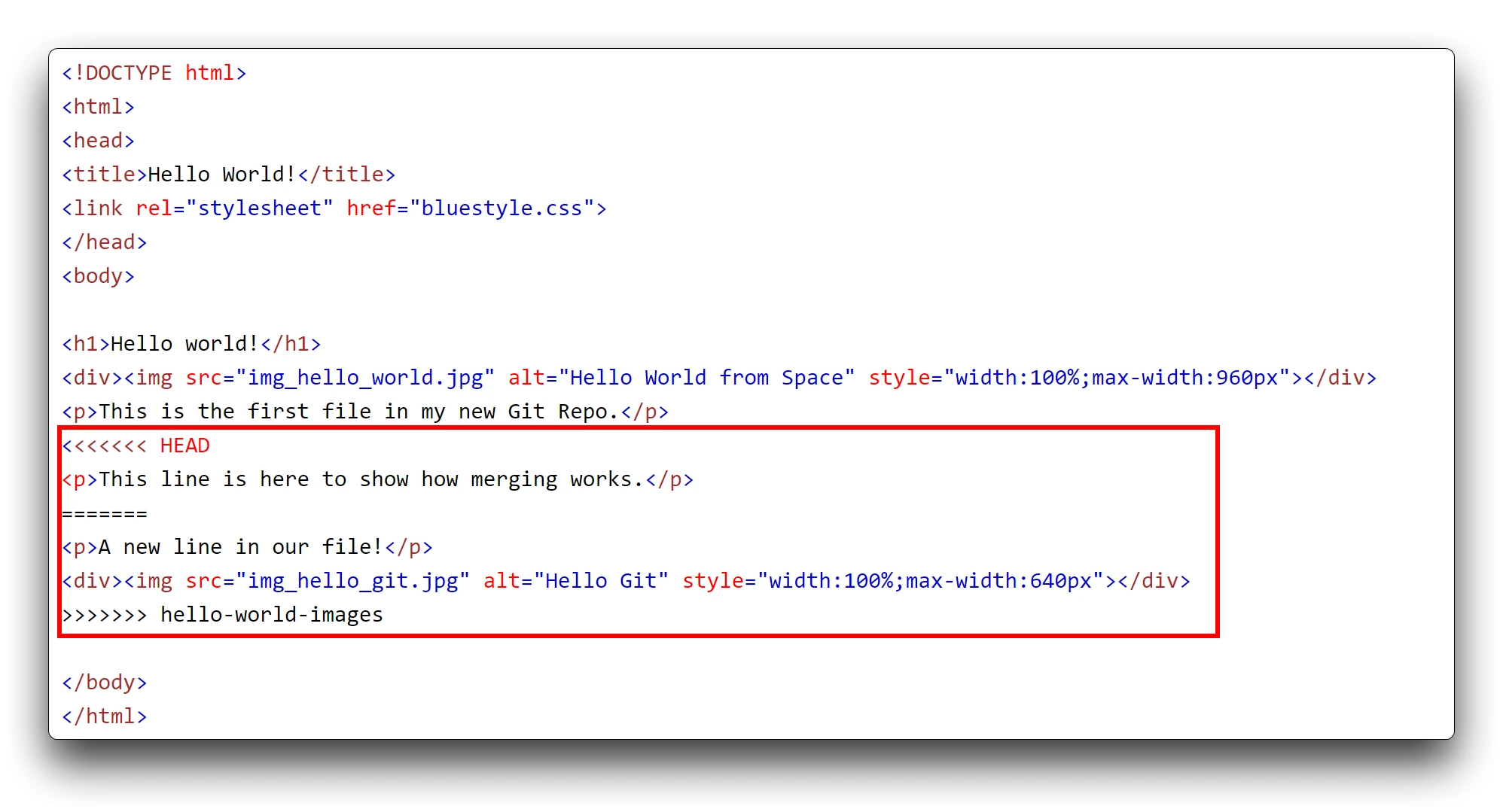
你的文件中会以 <<<<<<< HEAD >>>>>>> filename 来展示出现冲突的位置。
更改成你想要的最终内容,并执行。
git add index.html
git status
On branch master
All conflicts fixed but you are still merging.
  (use "git commit" to conclude merge)
Changes to be committed:
        new file:   img_hello_git.jpg
        new file:   img_hello_world.jpg
modified: index.html冲突已解决。继续提交commit即可。
最后删除分支。
GitHub创建远程仓库
密钥配置:
首先创建一个新的密钥,使用您的电子邮件作为标签:
ssh-keygen -t rsa -b 4096 -C "[email protected]"通过此创建将提示您执行以下操作:
Enter file in which to save the key (/c/Users/user/.ssh/id_rsa):选择一个文件位置,或按“回车”使用默认的文件位置。
Enter passphrase (empty for no passphrase):
Enter same passphrase again:如果您添加了密码,系统将提示您提供密码。
ssh-add /Users/user/.ssh/id_rsa现在我们将使用命令将公钥复制到剪贴板:
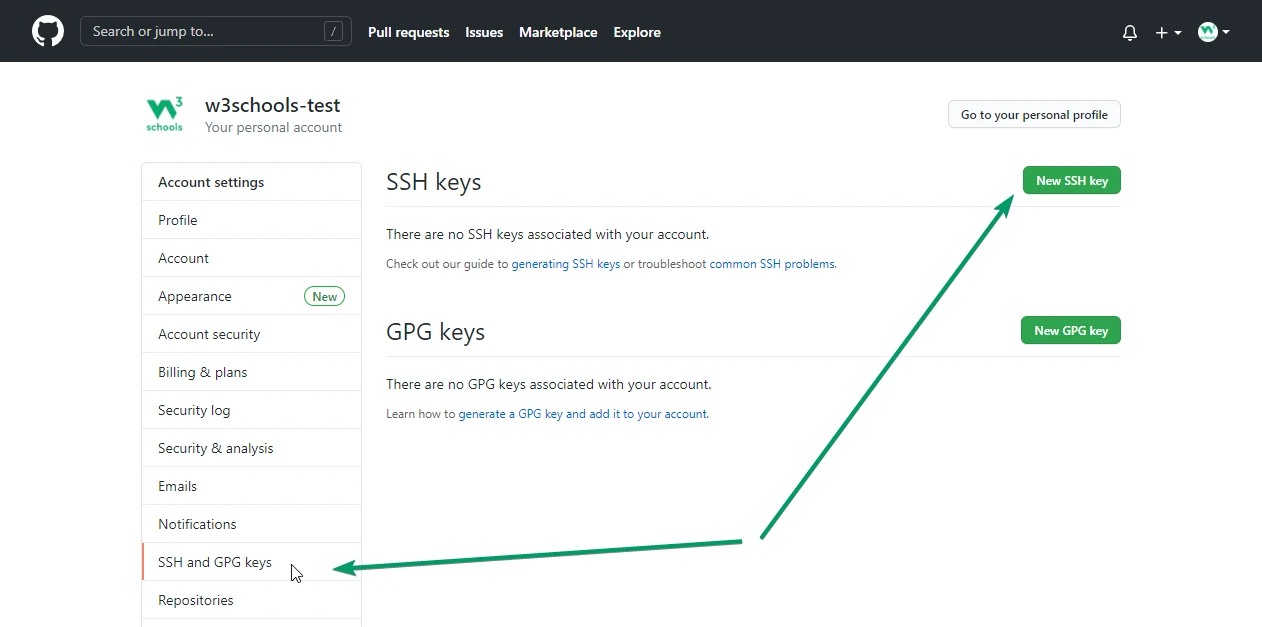
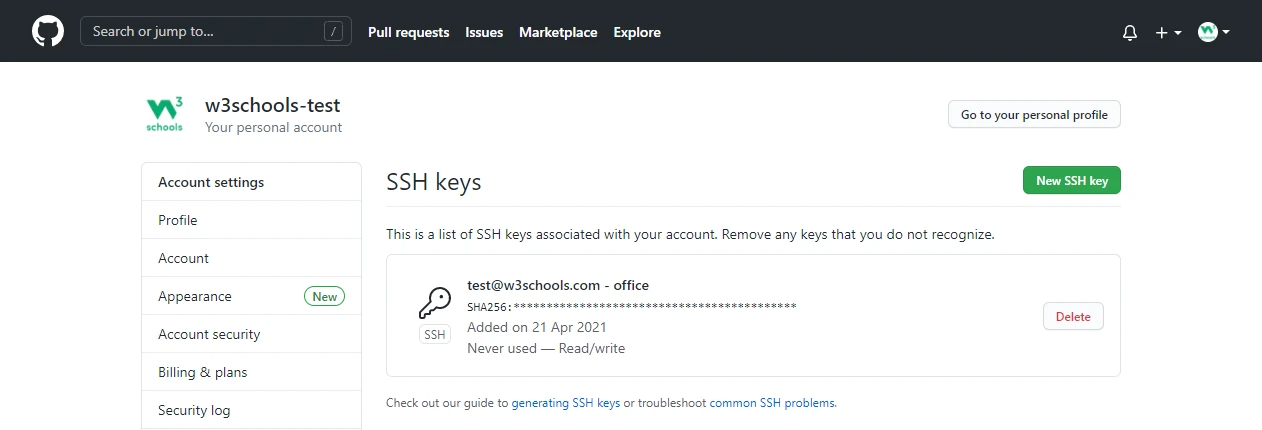
clip < /Users/user/.ssh/id_rsa.pub转到 GitHub,导航到左上角,单击您的配置文件,然后选择: 设置,然后选择“SSH and GPG keys”,点击“New SSH key”按钮。
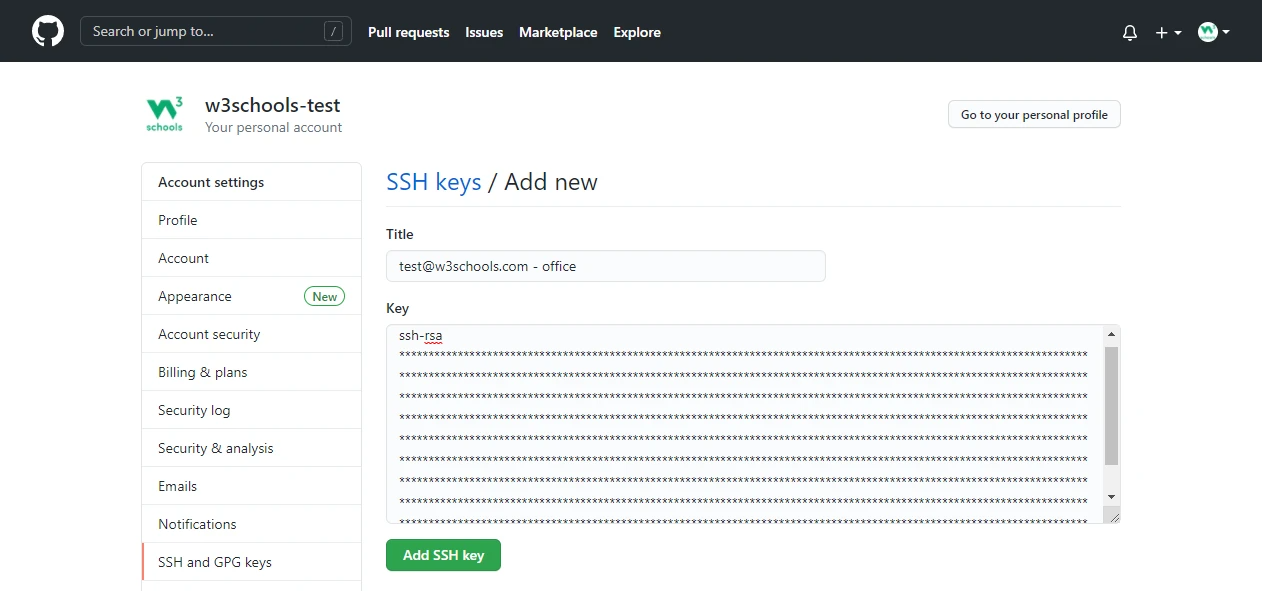
您将看到新的 SSH 密钥被添加:
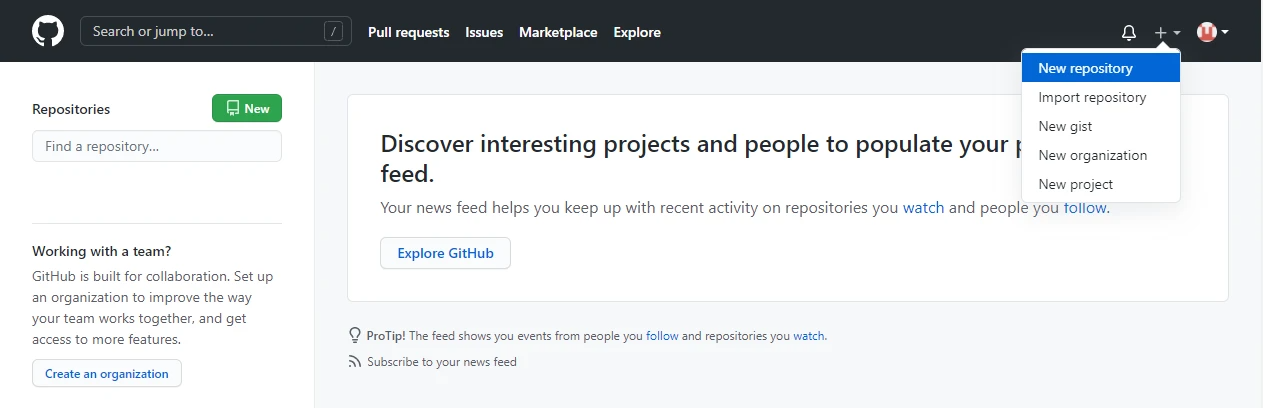
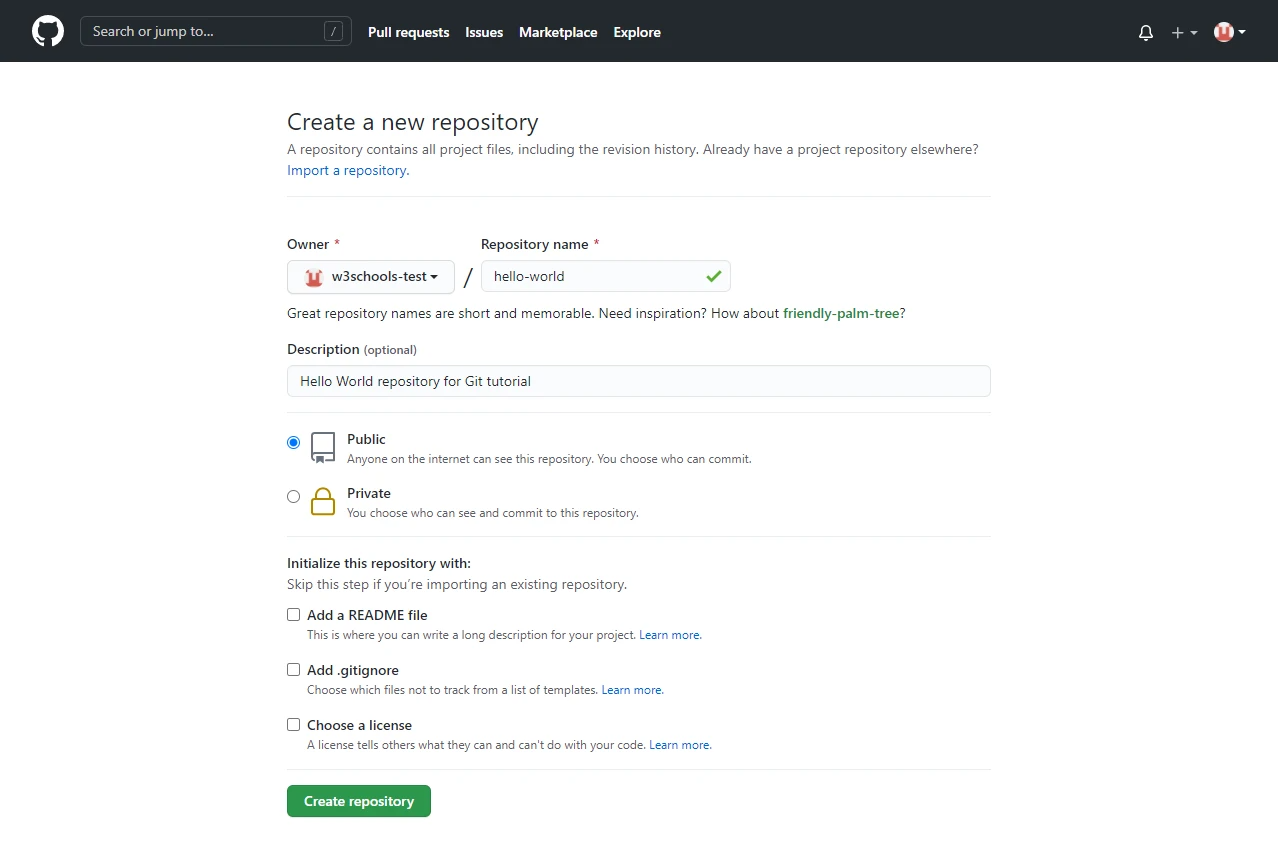
新建仓库:
获得远程仓库的地址:
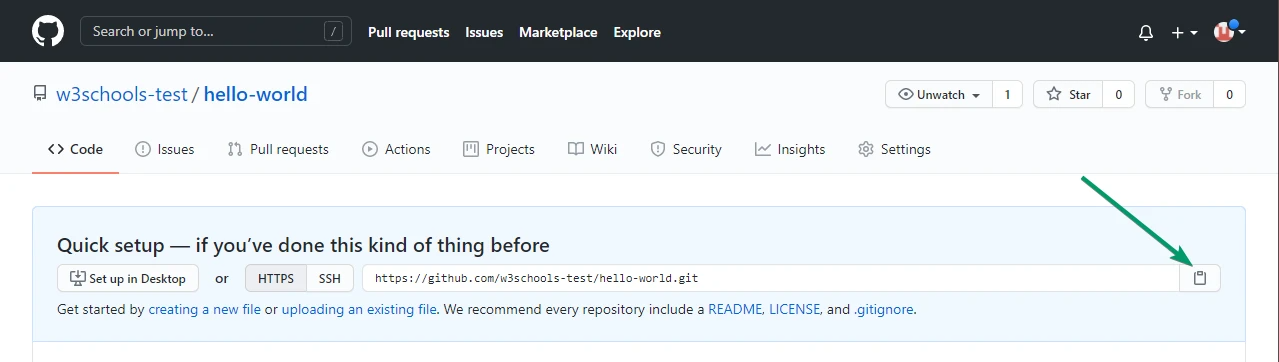
构建远程仓库与本地仓库的连接:
git remote add origin URL提交内容:
git push -u origin main保持与远程仓库的最新
查看本地与远程的历史更新记录:
git fetch origin查看状态:
git status
On branch master
Your branch is behind 'origin/master' by 1 commit, and can be fast-forwarded.
  (use "git pull" to update your local branch)
nothing to commit, working tree cleanbehind 'origin/master' by 1 commit 表示落后GitHub远程仓库一个commit。查看差异可以使用以下两种方式:
查看日志:
git log origin/main查看不同:
git diff origin/main确认可以和远程合并了,可以通过 Merge 将当前分支与指定分支组合在一起。
git merge origin/main但是,如果您只是想更新本地存储库,而不需要执行所有这些步骤。Pull 是获取和合并的组合。它用于将所有更改从远程存储库拉到您正在处理的分支中。
git pull origin提交到GitHub
git push origin远程分支
查看本地和远程的所有分支:
git branch -a仅查看远程分支:
git branch -r将远程分支同步到本地:
git pull推送本地分支到远程:
git push origin update-readme如果更改看起来不错,您可以继续前进,创建一个 pull 请求:
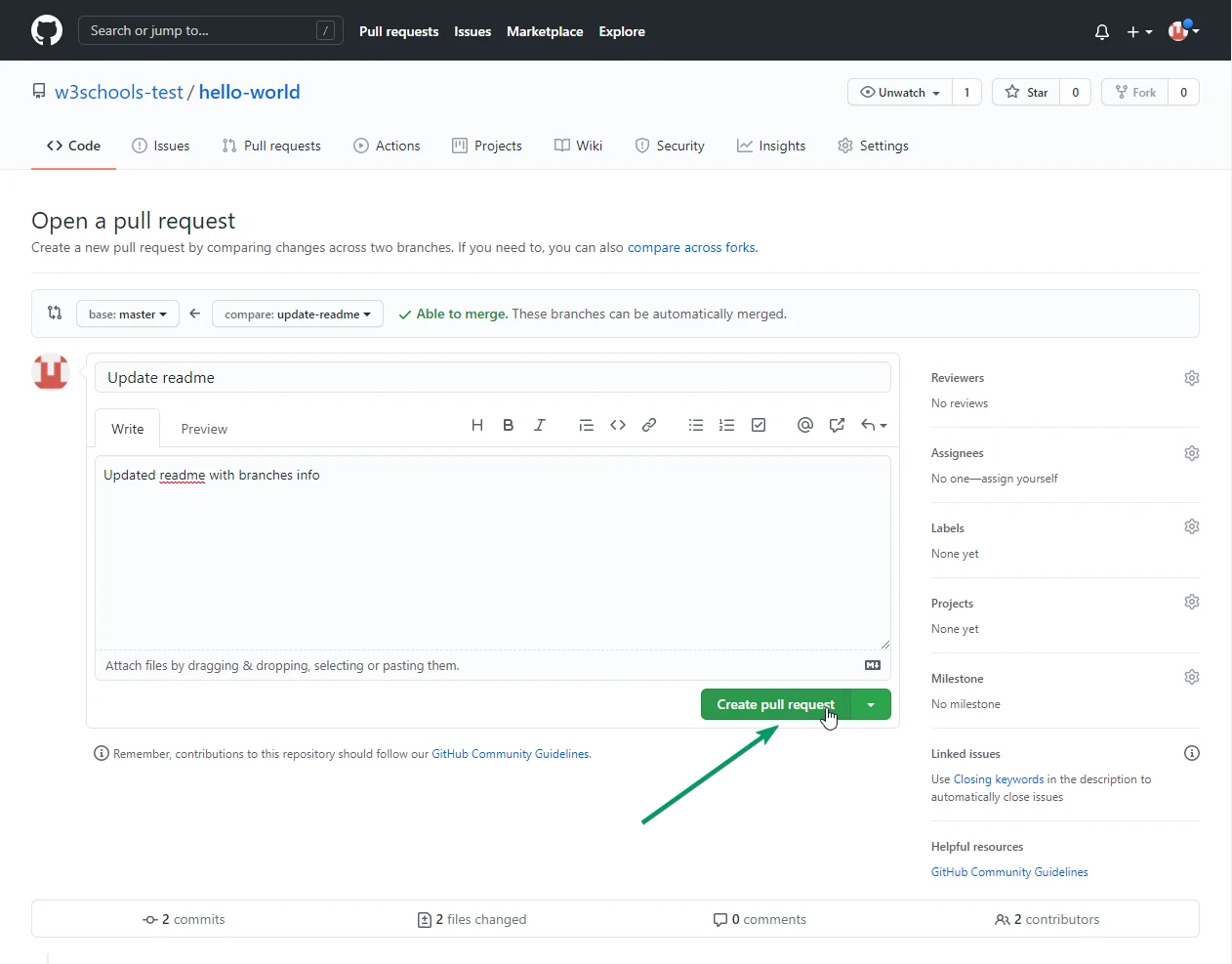
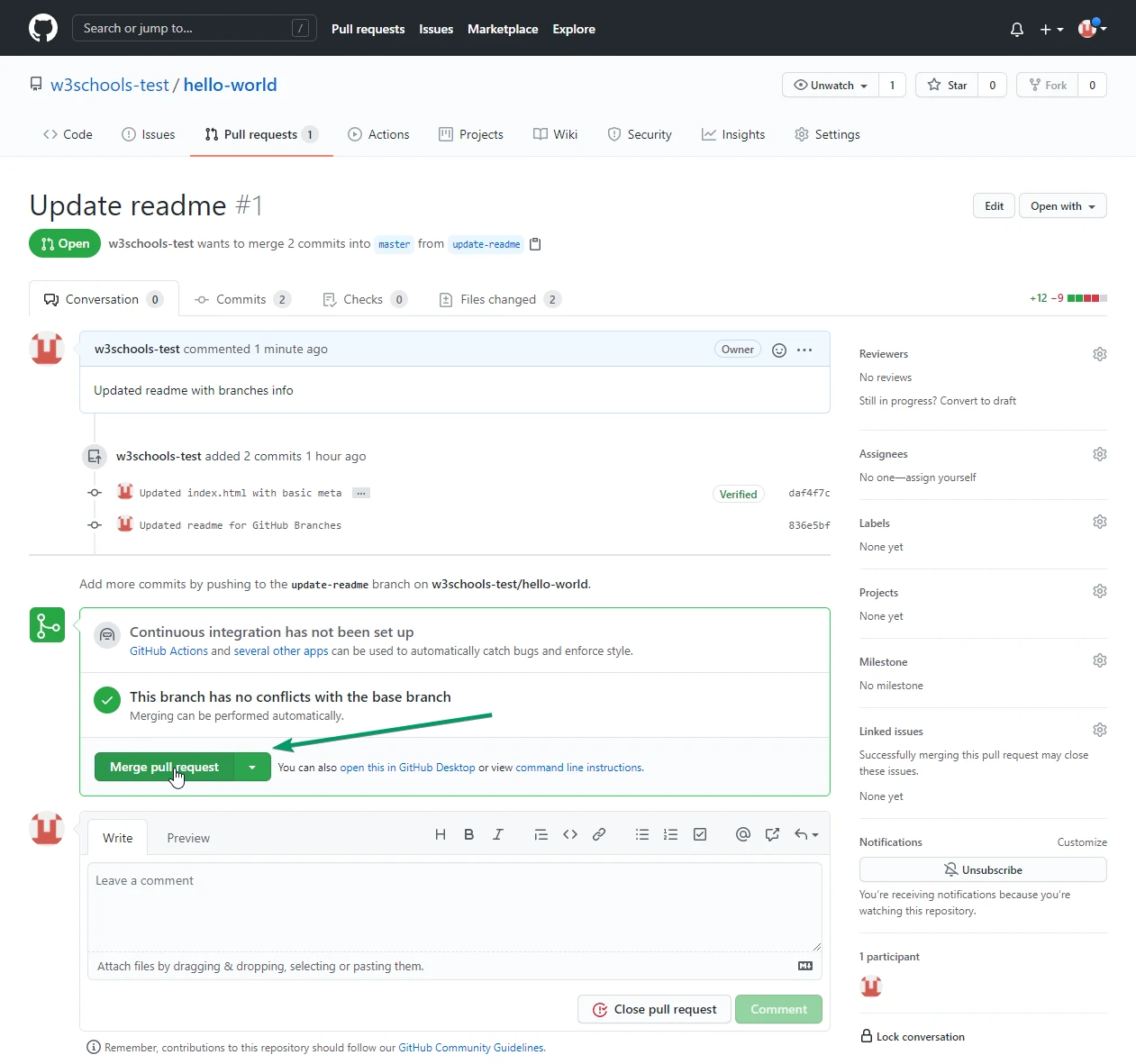
GitHub工作流
Create a new Branch 创建一个新的分支
Make changes and add Commits 进行更改并添加提交
Open a Pull Request 请求PR
Review 检查
Deploy 部署&测试
Merge 合并
#首次提交自己的仓库(主分支下操作)
git init
git add .
git commit -m "first commit"
git branch -M main
git remote add origin URL
git pull origin main --allow-unrelated-histories
git push -u origin main

#之后进行编辑,创建分支后提交
git checkout -b test
修改内容
git add .
git commit -m""
git pull
解决冲突
git add .
git commit -m""
git push origin test   #git push -f origin test
提交PR
检查PR
合并
删除分支PR
转到 GitHub,我们看到存储库有一个新的提交。我们可以向原始存储库发送一个PR:
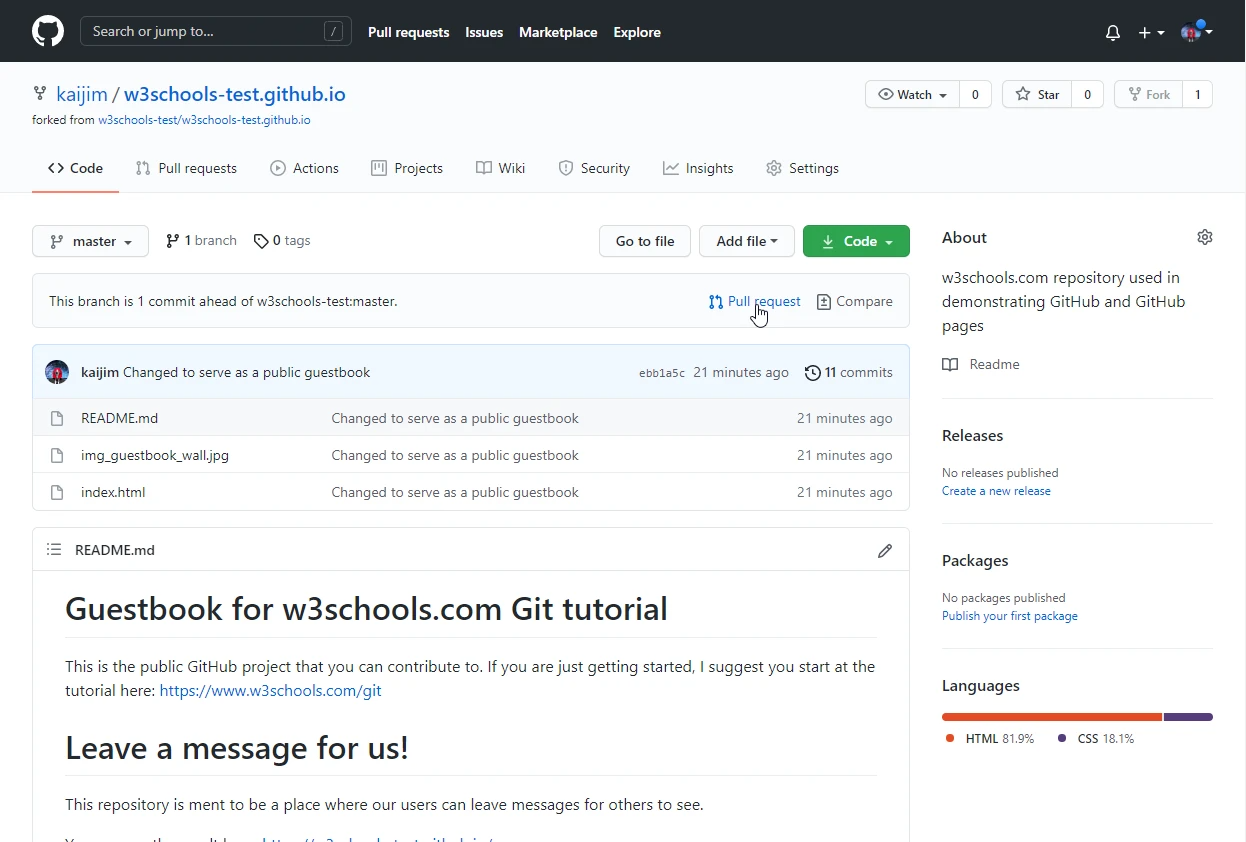
创建一个 pull 请求:
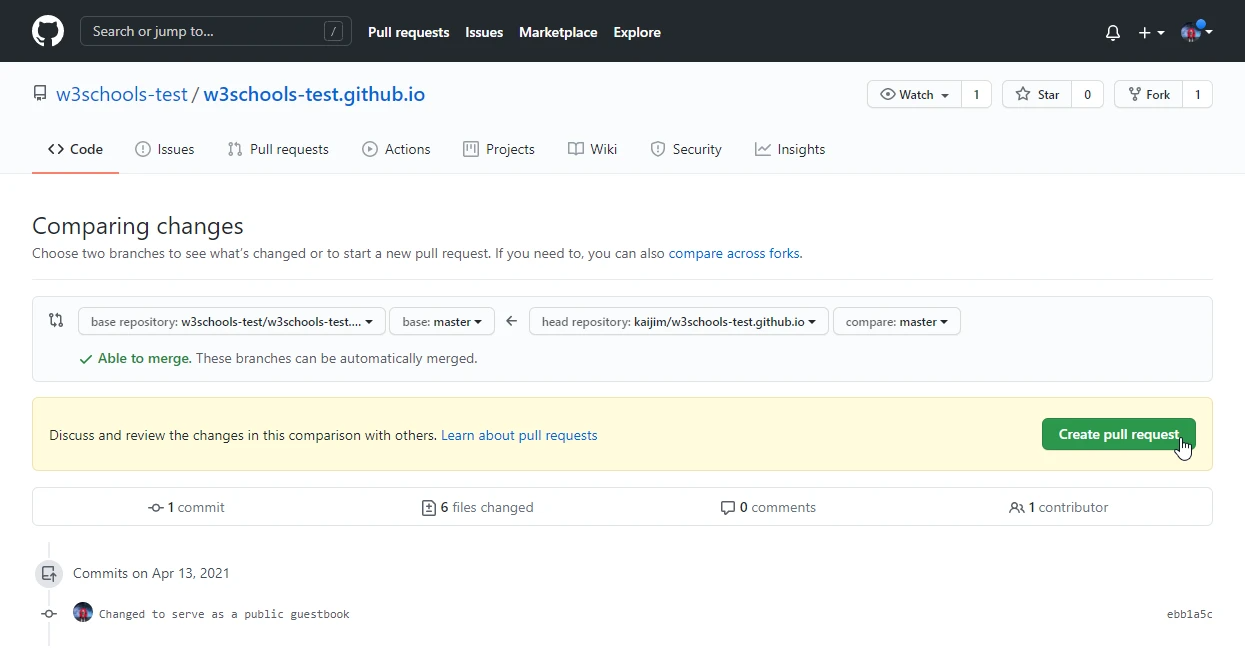
请记住为管理员添加说明。
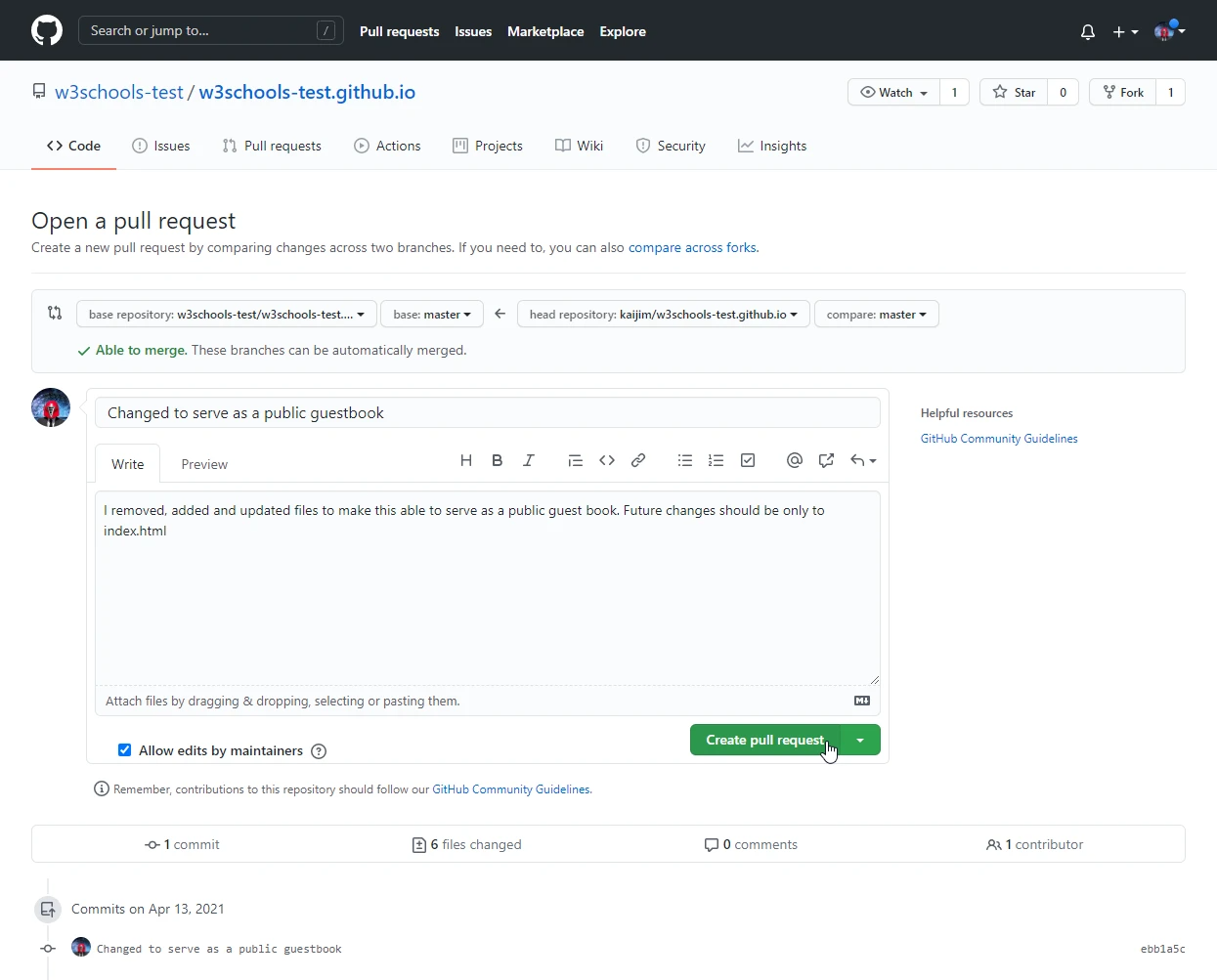
请求发送:
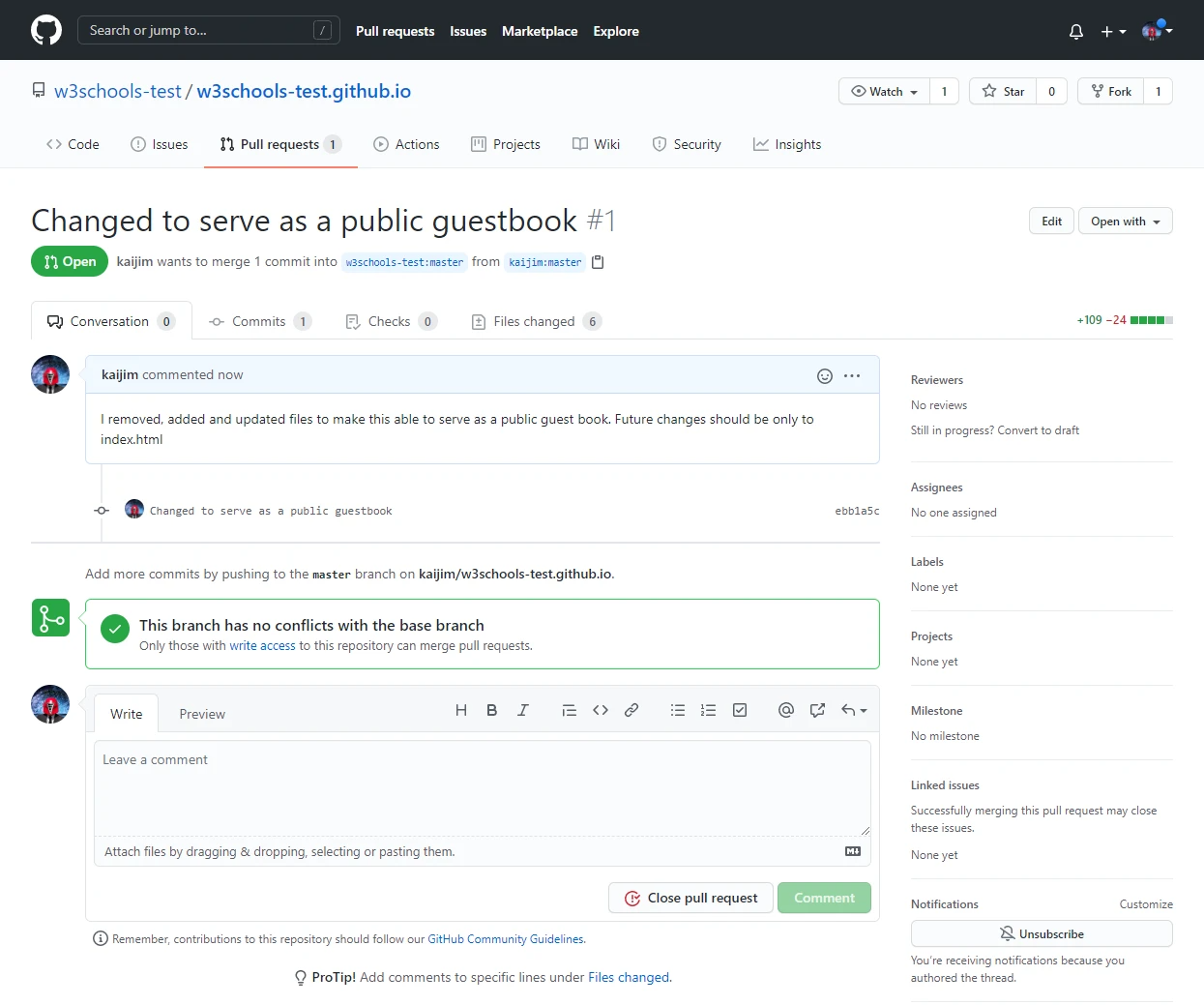
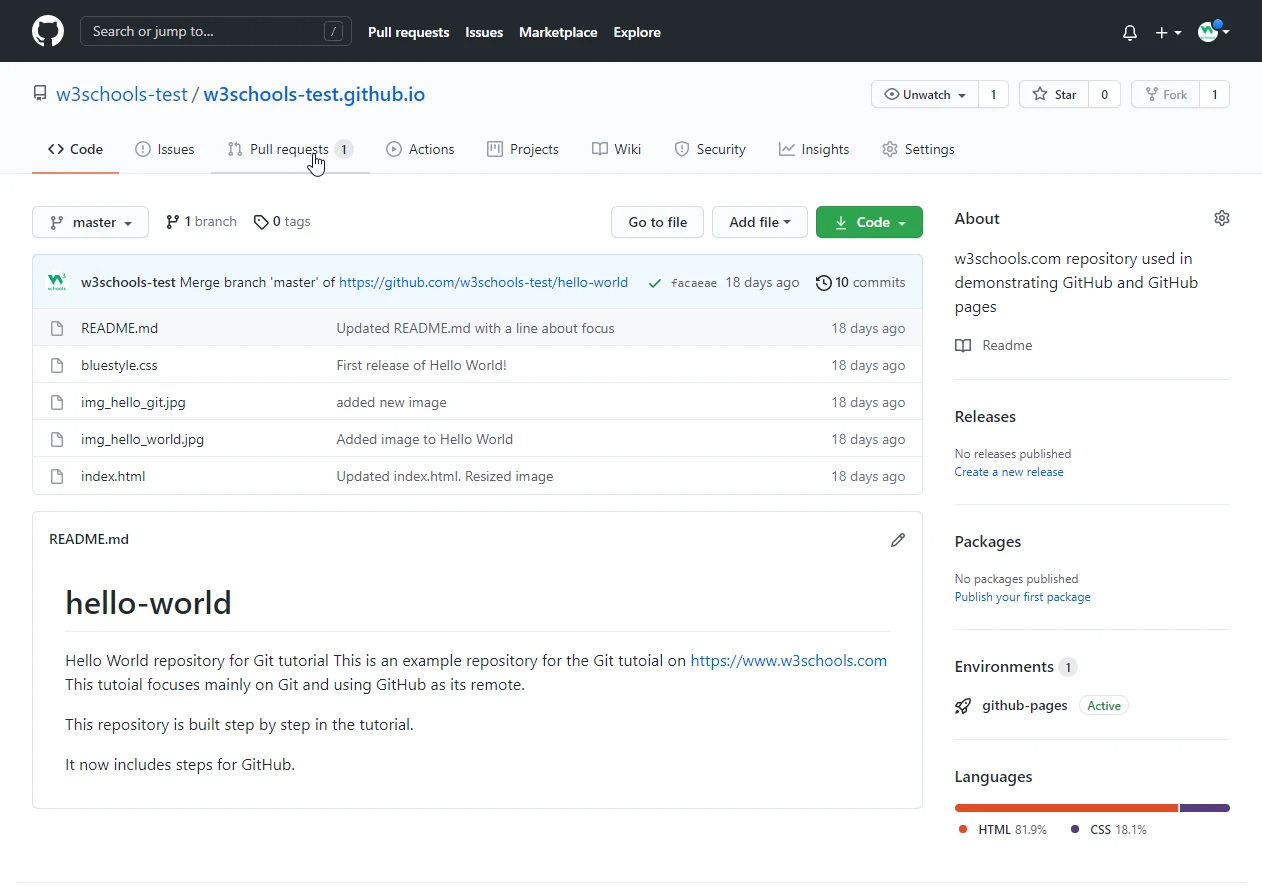
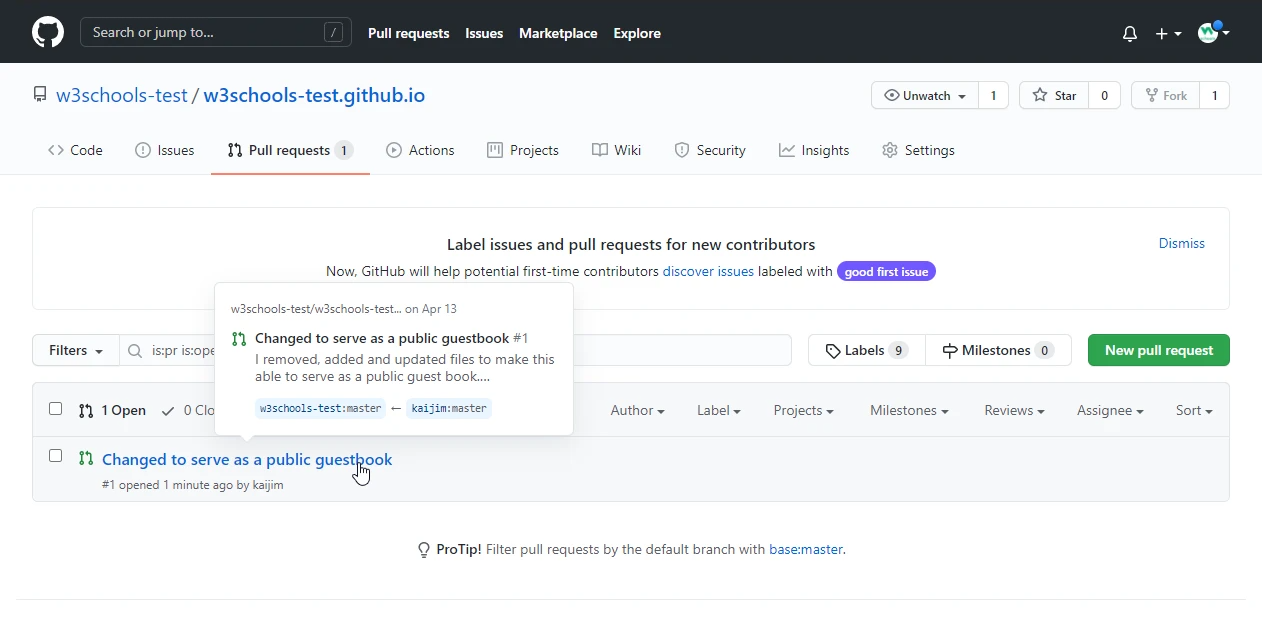
现在,任何具有访问权限的成员在看到原始存储库时都可以看到“拉请求”:
他们可以看到变化:
对更改和合并进行评论:
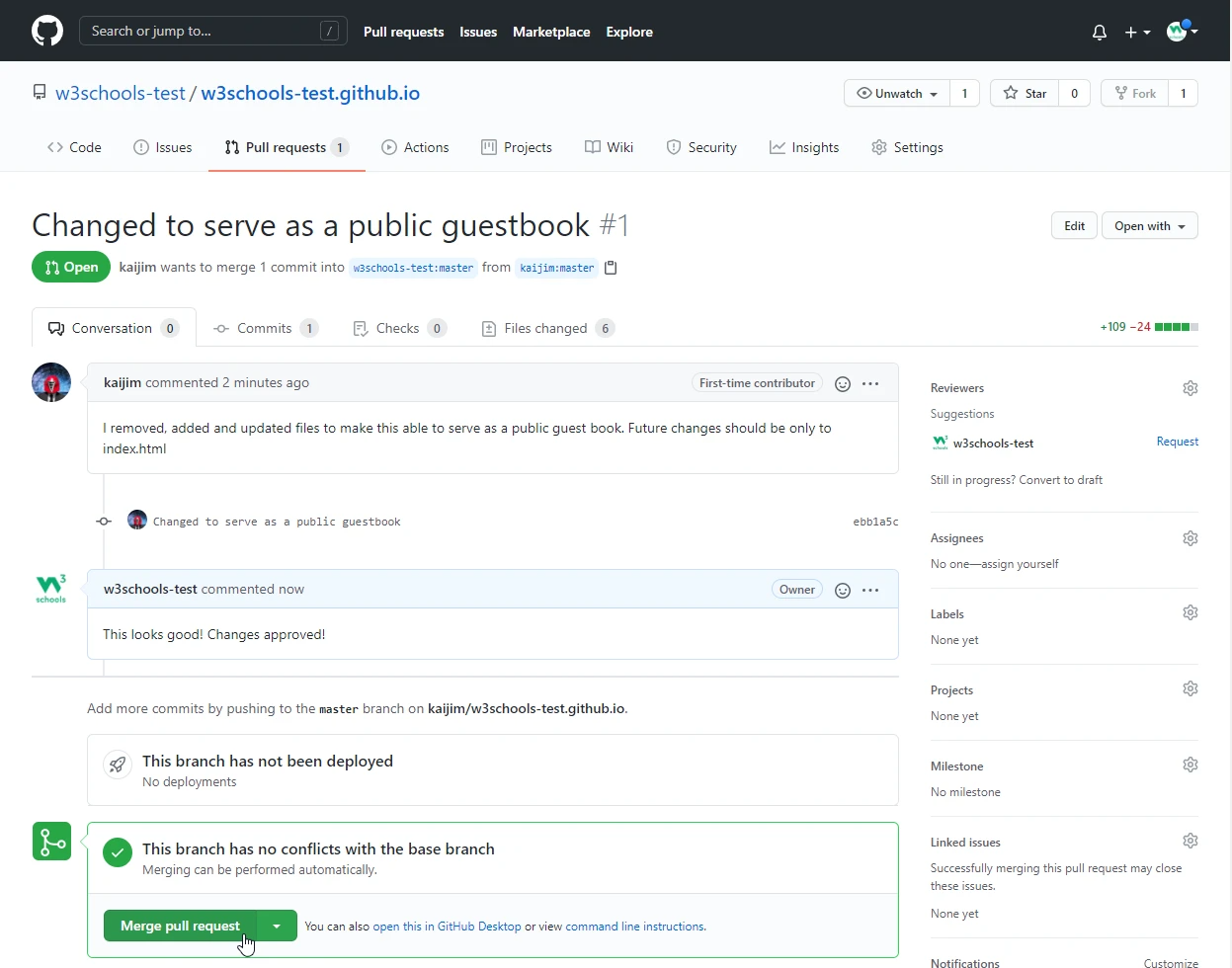
确认:
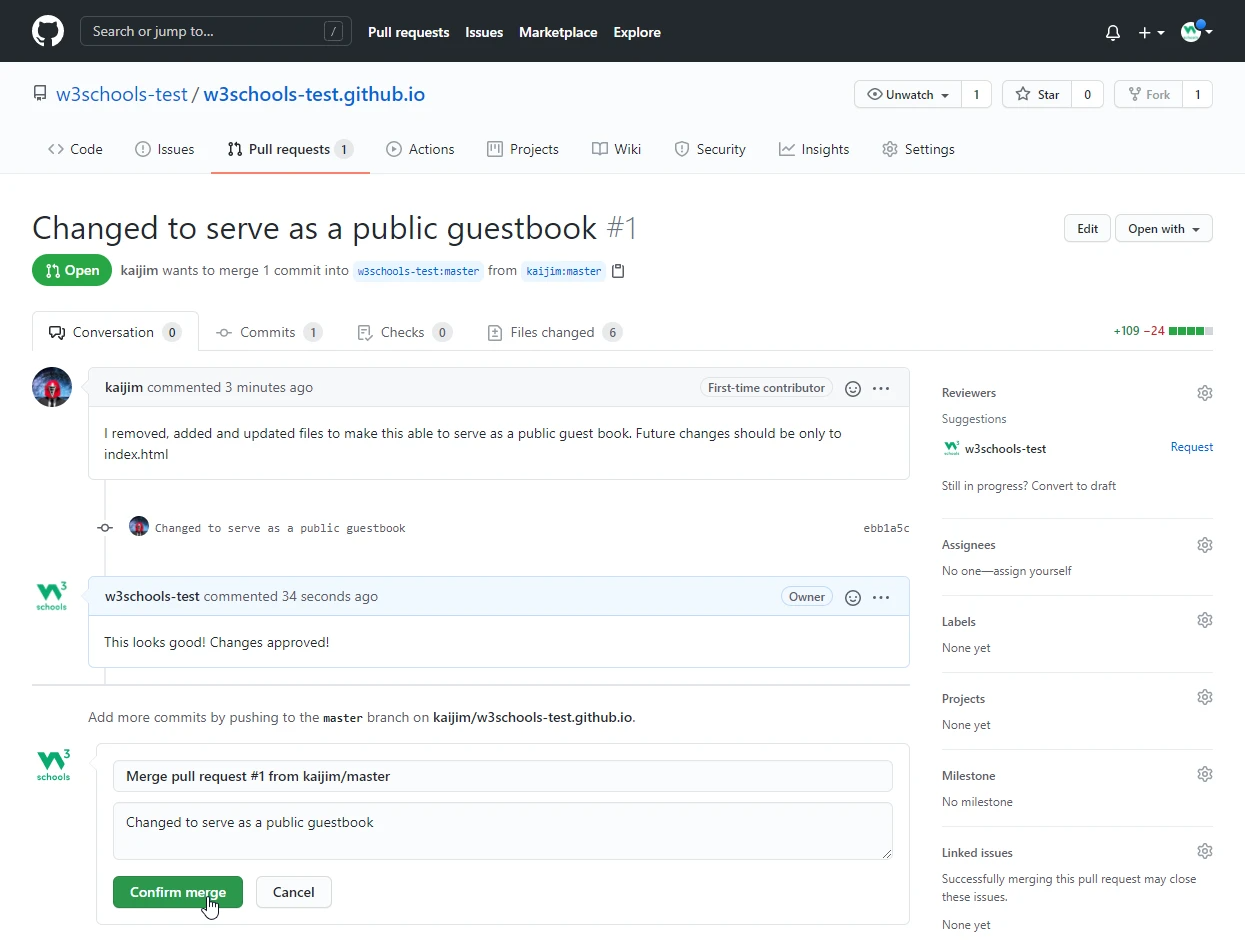
变化已经与主分支合并:
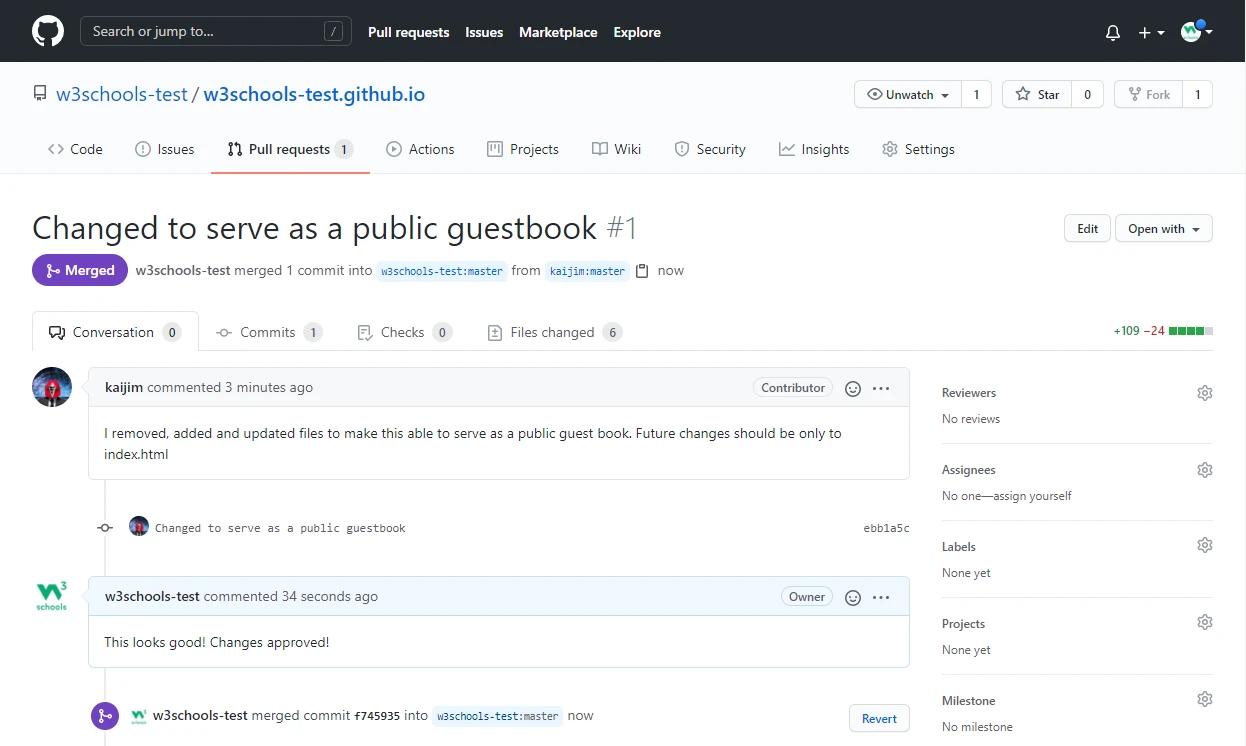
回撤
为了避免非常长的日志列表,我们将使用—— oneline 选项,它只显示每个提交一行,让我们找到我们想要回撤的位置:
git log --oneline
52418f7 (HEAD -> master) Just a regular update, definitely no accidents here...
9a9add8 (origin/master) Added .gitignore
81912ba Corrected spelling error
3fdaa5b Merge pull request #1 from w3schools-test/update-readme
836e5bf (origin/update-readme, update-readme) Updated readme for GitHub Branches
daf4f7c (origin/html-skeleton, html-skeleton) Updated index.html with basic meta
facaeae (gh-page/master) Merge branch 'master' of https://github.com/w3schools-test/hello-world
e7de78f Updated index.html. Resized image
5a04b6f Updated README.md with a line about focus
d29d69f Updated README.md with a line about GitHub
e0b6038 merged with hello-world-images after fixing conflicts
1f1584e added new image
dfa79db updated index.html with emergency fix
0312c55 Added image to Hello World
09f4acd Updated index.html with a new line
221ec6e First release of Hello World!注意: 要恢复到之前的提交,请使用 git revert HEAD~x (x 是一个数字。1再倒回去1,2再倒回去2,等等)
或:
git reset 9a9add8回退后:
git log --oneline
9a9add8 (HEAD -> master, origin/master) Added .gitignore
81912ba Corrected spelling error
3fdaa5b Merge pull request #1 from w3schools-test/update-readme
836e5bf (origin/update-readme, update-readme) Updated readme for GitHub Branches
daf4f7c (origin/html-skeleton, html-skeleton) Updated index.html with basic meta
facaeae (gh-page/master) Merge branch 'master' of https://github.com/w3schools-test/hello-world
e7de78f Updated index.html. Resized image
5a04b6f Updated README.md with a line about focus
d29d69f Updated README.md with a line about GitHub
e0b6038 merged with hello-world-images after fixing conflicts
1f1584e added new image
dfa79db updated index.html with emergency fix
0312c55 Added image to Hello World
09f4acd Updated index.html with a new line
221ec6e First release of Hello World!警告: 扰乱存储库的提交历史可能是危险的。对您自己的本地存储库进行这些类型的更改通常是可以的。但是,您应该避免对远程存储库进行重写历史的更改,特别是当其他人正在使用它们时。
即使提交不再显示在日志中,它也不会从 Git 中删除。如果你知道提交的commit,你可以重置它:
git reset e56ba1f